Got your Apollo Group TV subscription and ready to get streaming on your Firestick? You’re in the right place.
Installing an IPTV app on Amazon Fire TV isn’t complicated, but there are a few steps that trip people up — especially if you’ve never sideloaded an app before. This guide walks you through the entire process, clearly and simply, so you’re watching your favorite channels in under 15 minutes.
We’ll also cover common mistakes to avoid, tips to get the best picture quality, and what to do if something doesn’t work as expected.
Apollo Group TV delivers a premium IPTV experience with stable streaming, smooth live sports, and reliable support.
★★★★★
Rated 4.8 • Excellent
Trustpilot
View Plans →
Quick Summary
To install Apollo Group TV on a Firestick, you need to enable “Apps from Unknown Sources” in your Fire TV settings, then use the Downloader app to sideload the Apollo Group TV APK. The process takes about 10–15 minutes and works on all current Fire TV and Firestick models.
Key takeaways:
- Enable Developer Options and Unknown Sources before starting
- Use the free Downloader app (available in the Amazon App Store) to install the APK
- You’ll need your Apollo Group TV login credentials ready
- A stable internet connection of at least 25 Mbps is recommended
- Works on Firestick 4K, Firestick Lite, Fire TV Cube, and standard Firestick models
Table of Contents
- What Is Sideloading and Why You Need to Do It
- What You’ll Need Before You Start
- How to Install Apollo Group TV on Firestick: Step-by-Step
- Tips, Best Practices, and Mistakes to Avoid
- Best Viewing Setups for Apollo Group TV
- Troubleshooting Common Problems
- FAQ
- Conclusion
What Is Sideloading and Why You Need to Do It
Amazon’s Firestick is a powerful little streaming device, but it only officially allows apps that are listed in the Amazon App Store. Since Apollo Group TV (like most IPTV services) isn’t distributed through Amazon’s storefront, you need to install it a different way — a process called sideloading.
Sideloading simply means installing an app from outside the official app store. It’s completely legal to do on your own device. Amazon even includes a built-in setting to allow this — you just need to turn it on.
Think of it like downloading software directly from a developer’s website on your laptop, rather than going through an app store.
A Note on Legal Use
Apollo Group TV is a subscription-based IPTV service that provides access to licensed and authorized content. As a subscriber, you’re accessing streams through a paid, legitimate service.
That said, it’s important to note: how you use any streaming service matters. Always respect copyright laws and the terms of service in your state and across the United States. Do not use any IPTV service to access content you haven’t paid for or that isn’t authorized for distribution. Apollo Group TV operates within the framework of a legal, subscription-based model — and subscribers are expected to do the same.
What You’ll Need Before You Start
Before jumping into the steps, make sure you have the following ready:
- A Firestick or Fire TV device (any generation — Firestick Lite, Firestick 4K, Fire TV Cube, etc.)
- Your Amazon account logged in on the device
- An active Apollo Group TV subscription — if you don’t have one yet, view available IPTV subscription plans here
- Your Apollo Group TV login credentials (username and password from your welcome email)
- The APK download URL for Apollo Group TV (provided after subscribing)
- A Wi-Fi or Ethernet connection (25 Mbps minimum recommended; 50 Mbps+ for 4K)
- The Downloader app (free from the Amazon App Store — we’ll install this in Step 1)
Pro tip: Have your phone or laptop nearby to copy the APK URL easily. Typing long URLs using the Firestick remote can be tedious.
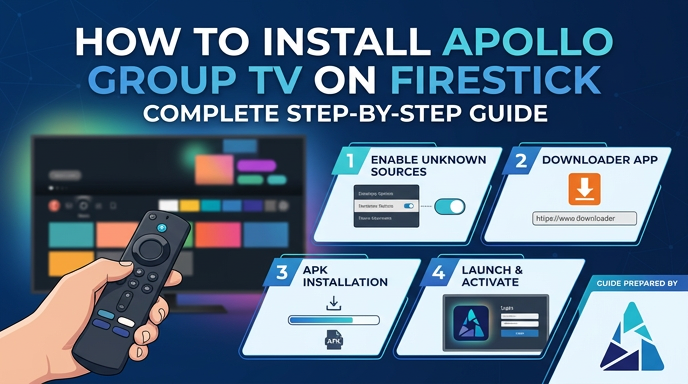
How to Install Apollo Group TV on Firestick: Step-by-Step
Step 1: Enable Developer Options on Your Firestick
First, you need to unlock a hidden settings menu that allows app sideloading.
- From your Firestick home screen, go to Settings (the gear icon at the top)
- Scroll right and select My Fire TV
- Scroll down and tap Developer Options
- If you don’t see Developer Options, tap About → then click your Fire TV’s serial number 7 times to unlock it, then go back
Step 2: Turn On “Apps from Unknown Sources”
Once you’re inside Developer Options:
- Find the option labeled Install Unknown Apps or Apps from Unknown Sources (wording varies slightly by firmware version)
- Toggle it ON
- You may see a warning from Amazon — tap Turn On to confirm
This step is essential. Without it, your Firestick will block any app that doesn’t come from the Amazon App Store.
Step 3: Install the Downloader App
The Downloader app is a free, Amazon-approved tool that lets you download and install APK files on your Firestick. You can read more about it on Amazon’s official Fire TV support page.
- Press the Home button to go back to the Firestick home screen
- Go to the Search function (magnifying glass icon)
- Type “Downloader”
- Select the app from the results — it’s made by AFTVnews and has an orange icon
- Click Download or Get to install it
- Once installed, open the Downloader app
- Allow any permissions it requests
Step 4: Allow Downloader to Install Unknown Apps
Amazon requires you to grant permission on a per-app basis in newer Fire OS versions.
- Go back to Settings → My Fire TV → Developer Options → Install Unknown Apps
- Find Downloader in the list
- Toggle it to ON
This tells your Firestick to trust files downloaded through the Downloader app specifically.
Step 5: Download the Apollo Group TV APK
Now you’re ready to download the actual Apollo Group TV app.
- Open the Downloader app
- You’ll see a URL bar on the screen — click on it to bring up the keyboard
- Enter the APK download URL provided to you by Apollo Group TV after your subscription (check your welcome email or your account dashboard)
- Click Go
- Downloader will begin fetching the file — this usually takes 30–90 seconds depending on your connection speed
Note: If you haven’t subscribed yet, you won’t have access to the APK download link. Start your IPTV subscription with Apollo Group TV to get your credentials and download link.
Step 6: Install the Apollo Group TV App
Once the APK has finished downloading:
- A prompt will appear asking if you want to Install the app
- Click Install — the installation will take about 10–20 seconds
- When it finishes, you’ll see an “App installed” confirmation screen
- You can choose to Open the app immediately, or tap Done and find it in your apps list
Step 7: Log In and Start Streaming
- Open the Apollo Group TV app (if it didn’t open automatically)
- Enter your username and password from your Apollo Group TV subscription
- Give the app a moment to load your channel list — this can take 15–30 seconds on first load
- Browse your channels, VOD library, and sports sections
- Enjoy your streams
Apollo Group TV delivers a premium IPTV experience with stable streaming, smooth live sports, and reliable support.
★★★★★
Rated 4.8 • Excellent
Trustpilot
View Plans →
Tips, Best Practices, and Mistakes to Avoid
Getting the app installed is just step one. Here’s how to make sure your experience is consistently smooth.
Internet Speed Recommendations
| Stream Quality | Minimum Speed | Recommended Speed |
|---|---|---|
| SD (480p) | 5 Mbps | 10 Mbps |
| HD (720p/1080p) | 15 Mbps | 25 Mbps |
| 4K / Ultra HD | 25 Mbps | 50 Mbps+ |
Most US households with Comcast, AT&T, or Cox should have no trouble meeting these requirements, but always test your actual Firestick speed — not just your plan’s advertised speed.
Wi-Fi vs. Ethernet
- Wi-Fi works fine for most users if your router is in the same room or nearby
- Ethernet via a Fire TV Ethernet Adapter gives you a much more stable connection — strongly recommended for 4K or heavy sports streaming
- Avoid placing your Firestick behind your TV or inside a cabinet — this weakens the Wi-Fi signal significantly
You can check Amazon’s official Fire TV Ethernet adapter guide if you want a wired connection.
Common Mistakes to Avoid
- Skipping the “Unknown Sources” toggle: This is the #1 reason installs fail. Don’t skip Step 2.
- Typing the APK URL incorrectly: Even one wrong character will break the download. Use a phone or laptop to look up the URL, then carefully enter it on screen.
- Using a slow or congested Wi-Fi band: If your home uses a 2.4 GHz network, consider switching to 5 GHz for a more stable stream.
- Not restarting the Firestick after installation: A quick restart can clear minor glitches after installing any new app.
- Forgetting to update the app: When Apollo Group TV releases updates, you’ll need to repeat the APK install process with the new version. Check your account dashboard or email for update notices.
App-Specific Tips
- Clear the app cache occasionally if streams start stuttering: Settings → Applications → Manage Installed Applications → Apollo Group TV → Clear Cache
- Use the EPG (Electronic Program Guide) within the app to browse upcoming sports events and set reminders
- If the channel list takes too long to load, check your DNS settings — switching to Google DNS (8.8.8.8) or Cloudflare (1.1.1.1) often helps. How-To Geek has a helpful guide on changing DNS settings on streaming devices.
Best Viewing Setups for Apollo Group TV
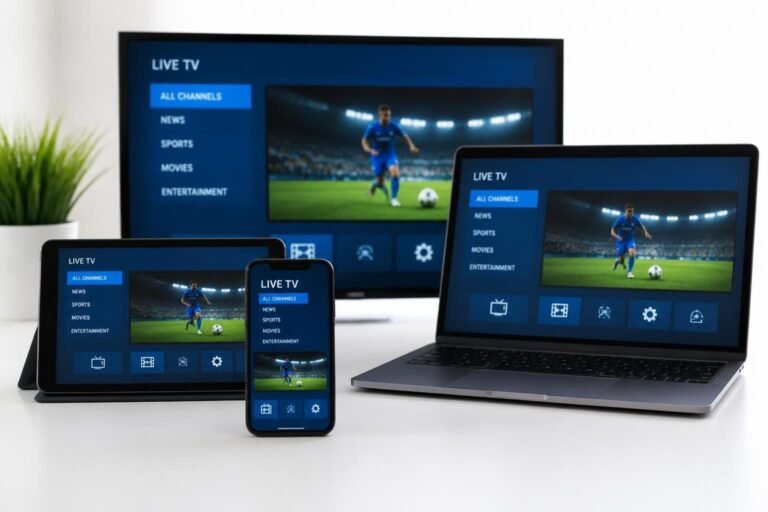
Apollo Group TV is designed to work well across multiple devices and rooms. Here’s how different subscribers typically set things up:
Living Room Setup
- Fire TV Cube or Firestick 4K Max connected to a 4K TV
- Ethernet connection via the Amazon adapter
- Apollo Group TV app for live TV and VOD
- Best for: families, sports fans, movie nights
Bedroom or Guest Room Setup
- Standard Firestick or Firestick Lite
- Wi-Fi on the 5 GHz band
- Best for: casual viewing, news, and on-demand content
Travel Setup
- Firestick plugged into any hotel TV’s HDMI port
- Mobile hotspot from your phone (AT&T, Verizon, T-Mobile) as the internet source
- Best for: US travelers who want access to their home channels on the road
Comparison: Firestick vs. Other Devices for Apollo Group TV
| Device | Performance | Ease of Setup | Best For |
|---|---|---|---|
| Firestick 4K | Excellent | Easy | Most users |
| Fire TV Cube | Best | Easy | Power users / 4K |
| Android TV Box | Excellent | Moderate | Advanced users |
| Smart TV (App) | Good | Very Easy | Casual viewers |
| Firestick Lite | Good | Easy | Budget option |
For most people in the United States, the Firestick 4K offers the best balance of performance, ease of use, and price. You can learn more about choosing the right Fire TV device on Tom’s Guide’s Fire TV comparison.
Troubleshooting Common Problems
Problem 1: The APK Won’t Download
Likely causes: Incorrect URL, slow internet, or the Downloader app doesn’t have permission.
Fixes:
- Double-check the URL you entered — even a single typo will cause a failure
- Make sure Downloader is set as a trusted app (Step 4 above)
- Try restarting your Firestick and attempting the download again
- Test your internet speed using the Fast.com speed test (works directly on Firestick via the Silk browser)
Problem 2: “App Not Installed” Error
Likely causes: The APK file is corrupted, or you have an older version of the app conflicting with the new one.
Fixes:
- Go to Settings → Applications → Manage Installed Applications and uninstall the old version first
- Re-download the APK using Downloader and try installing again
- Make sure you have enough storage on your Firestick (at least 500MB free)
Problem 3: Streams Are Buffering or Freezing
Likely causes: Slow internet, weak Wi-Fi signal, server load, or insufficient device cache.
Fixes:
- Run an internet speed test and confirm you’re hitting 25 Mbps or more at the Firestick
- Switch from 2.4 GHz Wi-Fi to 5 GHz, or use an Ethernet adapter
- Clear the app cache (Settings → Applications → Apollo Group TV → Clear Cache)
- Try a different server or stream quality setting within the app
- Restart your router and Firestick
Problem 4: App Crashes or Won’t Open
Likely causes: Outdated APK version, corrupted install, or memory issues on the device.
Fixes:
- Force stop the app and relaunch it
- Clear the app cache and data
- Uninstall and reinstall using the latest APK version from your Apollo Group TV account
- Restart the Firestick: Settings → My Fire TV → Restart
Problem 5: Channels Won’t Load or Show “Error”
Likely causes: Your subscription may be expired, or there’s a temporary issue with the server.
Fixes:
- Log out and log back in to refresh your account credentials
- Confirm your subscription is still active in your Apollo Group TV account dashboard
- Contact Apollo Group TV support directly — they typically respond quickly and can identify if there’s a known server issue
FAQ
Is it legal to install Apollo Group TV on a Firestick?
Yes. Sideloading apps on your own Firestick is legal, and Apollo Group TV operates as a subscription-based IPTV service. As long as you’re using a valid subscription to access authorized content, you’re within the law. Always make sure to comply with US copyright regulations and the service’s terms of use.
Do I need to jailbreak my Firestick to install Apollo Group TV?
No. You don’t need to jailbreak anything. Simply enabling “Apps from Unknown Sources” in Developer Options is all that’s required. This is a built-in Amazon feature and doesn’t modify or void your device in any way.
Which Firestick models are compatible with Apollo Group TV?
Apollo Group TV works on all current Firestick and Fire TV models, including:
- Firestick Lite
- Firestick (2nd, 3rd generation)
- Firestick 4K
- Firestick 4K Max
- Fire TV Cube (all generations)
How do I update Apollo Group TV on my Firestick?
When a new version is released, download the updated APK through the Downloader app using the same process. The new version will automatically replace the old one. You’ll receive notification of updates via your Apollo Group TV account email.
What internet speed do I need for Apollo Group TV on Firestick?
For HD streaming, aim for at least 25 Mbps. For 4K content, 50 Mbps or higher is recommended. You can test your Firestick’s actual speed using a browser-based speed test.
Can I use Apollo Group TV on multiple Firestick devices?
This depends on your subscription tier. Some plans allow multi-screen or multi-connection access. Check your specific plan details on the Apollo Group TV pricing page for multi-device options.
What should I do if I forget my Apollo Group TV login credentials?
Check your original welcome email for your username and password. If you can’t find it, contact Apollo Group TV’s customer support through your account dashboard to reset your credentials.
Does Apollo Group TV include a VOD library and sports channels?
Yes. Apollo Group TV offers a broad VOD library alongside live TV, sports, and premium channels. The full content breakdown is available when you explore the subscription plans.
Conclusion
Installing Apollo Group TV on your Firestick is a straightforward process once you know the steps. Enable unknown sources, install Downloader, grab your APK, and you’re set — usually in under 15 minutes.
The most important things to get right: make sure your internet connection is solid, use the correct APK URL from your account, and keep the app updated whenever a new version is released. Get those three things right and you’ll have a reliable, smooth streaming experience every time.
Apollo Group TV is built for subscribers who value stability and quality over bargain-basement pricing. If you’re already a subscriber, you know what you’re getting. If you’re still evaluating your options, take a look at what’s included — the channel lineup, sports coverage, VOD depth, and device compatibility speak for themselves.
Ready to get started? Browse Apollo Group TV’s IPTV subscription plans and get your credentials so you can follow this guide and start streaming today.
Want to learn more before committing? Check out our detailed Apollo Group TV review or visit our What is Apollo Group TV page for a full breakdown of what’s included with every plan.
Apollo Group TV delivers a premium IPTV experience with stable streaming, smooth live sports, and reliable support.
★★★★★
Rated 4.8 • Excellent
Trustpilot
View Plans →